How to make a cross stitch pattern in Photoshop
In Guides, by Ritvik Kudalkar. Updated 25 October 2026.
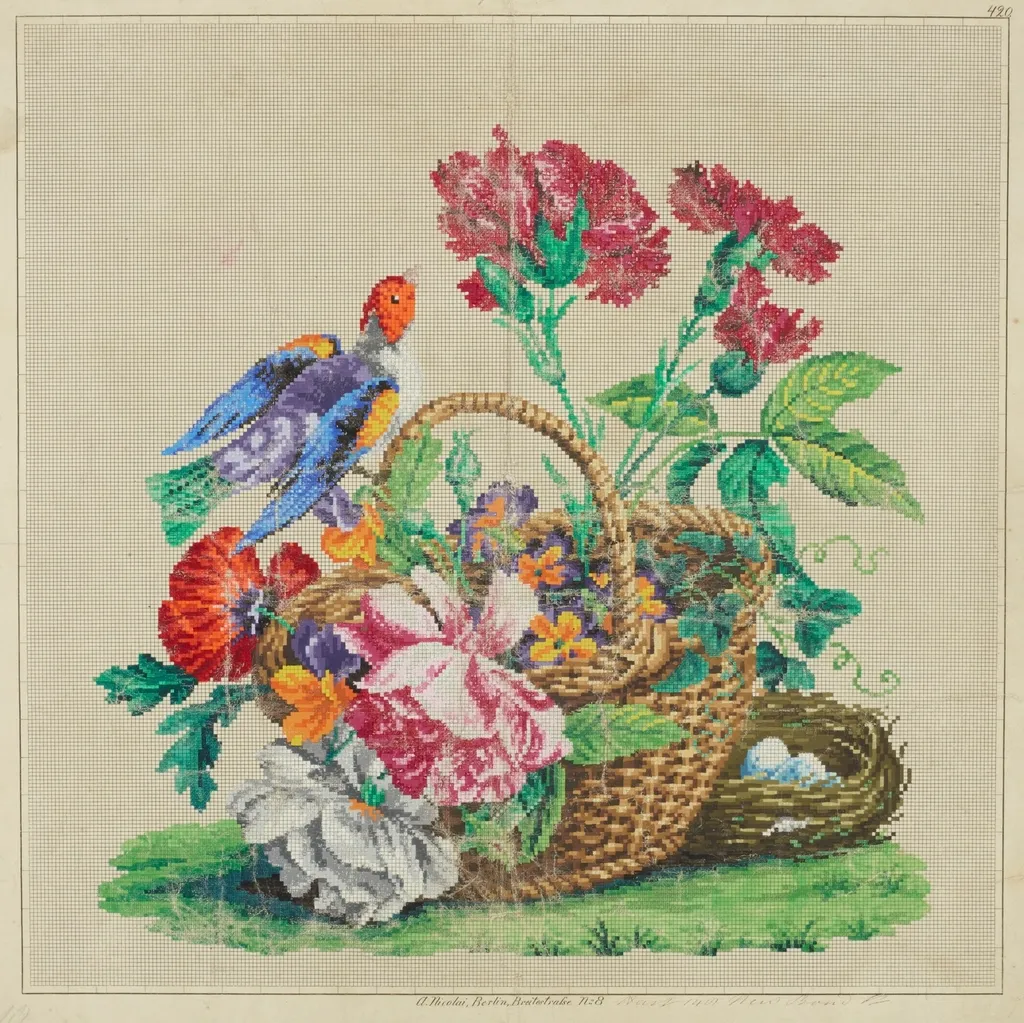
Photoshop can turn a photo into a cross stitch chart: shrink it so one pixel is one stitch, reduce it to a handful of colours, and show a grid. What it can't do is match those colours to real threads. This guide covers both the Photoshop route and the faster free way.
The Photoshop way
1. Crop
Open your photo and use the Crop tool to keep only the subject. A tight crop gives every stitch to the part you care about.
2. Set the size in stitches
Go to Image › Image Size. Keep the width and height linked, and set the width in pixels to the number of stitches you want across, for example 100. Choose Bicubic (smooth gradients) for resampling so each pixel averages the area it replaces. Click OK. The image is now tiny: one pixel per stitch.
3. Reduce the colours
Go to Image › Mode › Indexed Color. Set:
- Palette: Local (Perceptual) or Local (Selective)
- Colors: the number of threads you want, for example 20
- Forced: None
- Dither: None, so areas stay flat and stitchable
You can see the chosen colours afterwards under Image › Mode › Color Table.
4. Make it readable as a chart
Switch back to Image › Mode › RGB Color so you can scale up. Open Image › Image Size again and multiply the width by 10 (100 becomes 1000), this time with Nearest Neighbor (hard edges) so every stitch becomes a crisp 10 × 10 block.
Then set a grid in Edit › Preferences › Guides, Grid & Slices (Photoshop › Settings on a Mac): gridline every 100 pixels with 10 subdivisions. Turn it on with View › Show › Grid. You now have a square per stitch and a bold line every 10.
5. Match each colour to a thread
This is the slow part. For each colour in the color table, use the Eyedropper to read its value, then find the nearest DMC thread on a colour chart. Write the numbers down and assign each one a symbol if you want a printable black-and-white chart, which Photoshop won't make for you.
6. Print
Print the scaled-up image with the grid. For anything over about 60 stitches wide, you'll need to split it across pages yourself, with Image › Canvas Size or by printing selections.
Where Photoshop falls short
- No thread matching. Indexed Color chooses screen colours, and you match them to DMC by hand.
- No symbols or key. You'd have to build the legend and symbol chart yourself.
- No stitch counts, so no skein estimate.
- No page splitting with numbered rows and columns.
- No cleanup of single scattered stitches.
It's a good way to understand what a pattern maker does, and useful if you want full manual control. For a stitchable chart, it's a lot of steps.
The faster free way
The PatternSquare cross stitch pattern maker does every step above in your browser, in about a second:
- Drop your photo on the chart, or choose it from your device.
- Set the width in stitches and the number of colours.
- Colours are matched straight to DMC threads, judged by how they look to the eye.
- Download a PDF with symbols, a key with DMC numbers and skein estimates, and the chart split across numbered pages.
Like Photoshop, it works on your own computer: the photo is never uploaded.
Questions
Can GIMP do the same thing? Yes. Use Image › Scale Image to set the width in pixels, Image › Mode › Indexed to reduce colours, and View › Show Grid with a 1-pixel grid after scaling up.
Does Photoshop match colours to DMC threads? No. It picks the best colours for the image, not real thread colours. You have to match each one to a DMC number yourself, by eye or with a conversion chart.
Why do my colours look blotchy after Indexed Color? Dithering is probably on. Set Dither to None, so each area becomes a single flat colour you can stitch.