Minecraft pixel art generator
Turn any image into Minecraft pixel art, with a block count, a material list in stacks and shulker boxes, and a row-by-row view for building. Free and unofficial.
Drop the photo to chart it
Photos to blocks
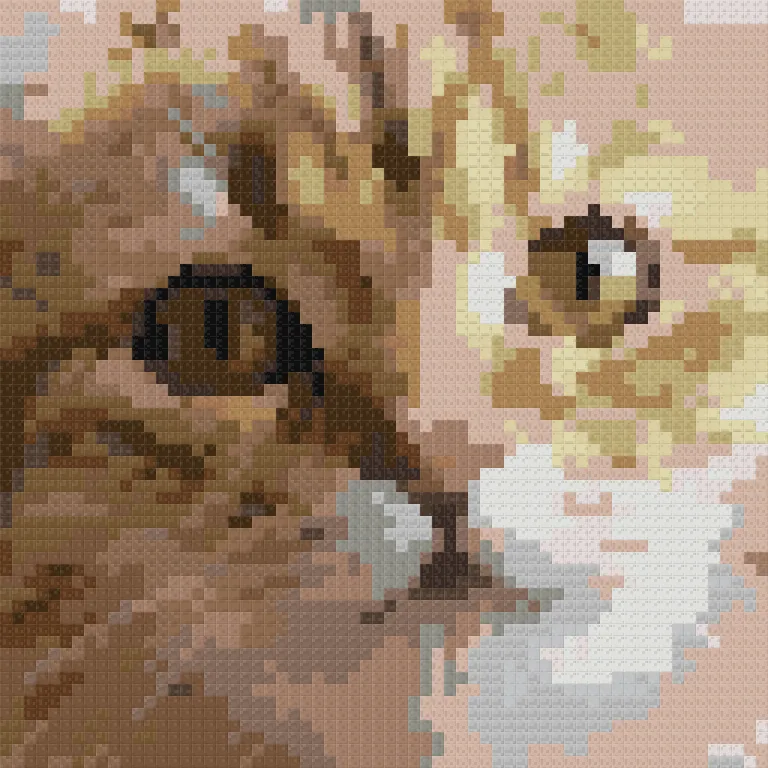
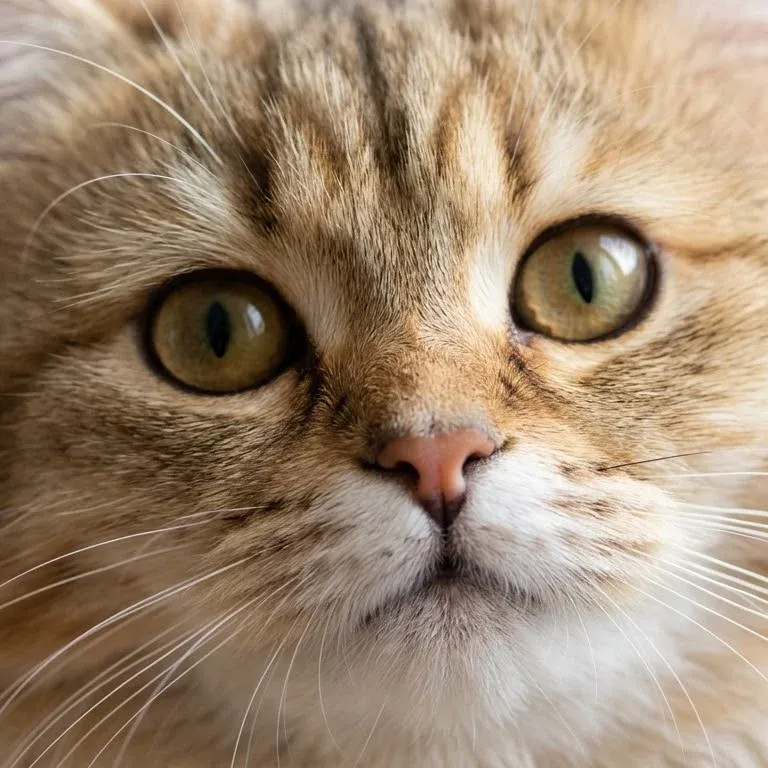
64 × 64 blocks24 kinds4,096 blocks
Cat, example image
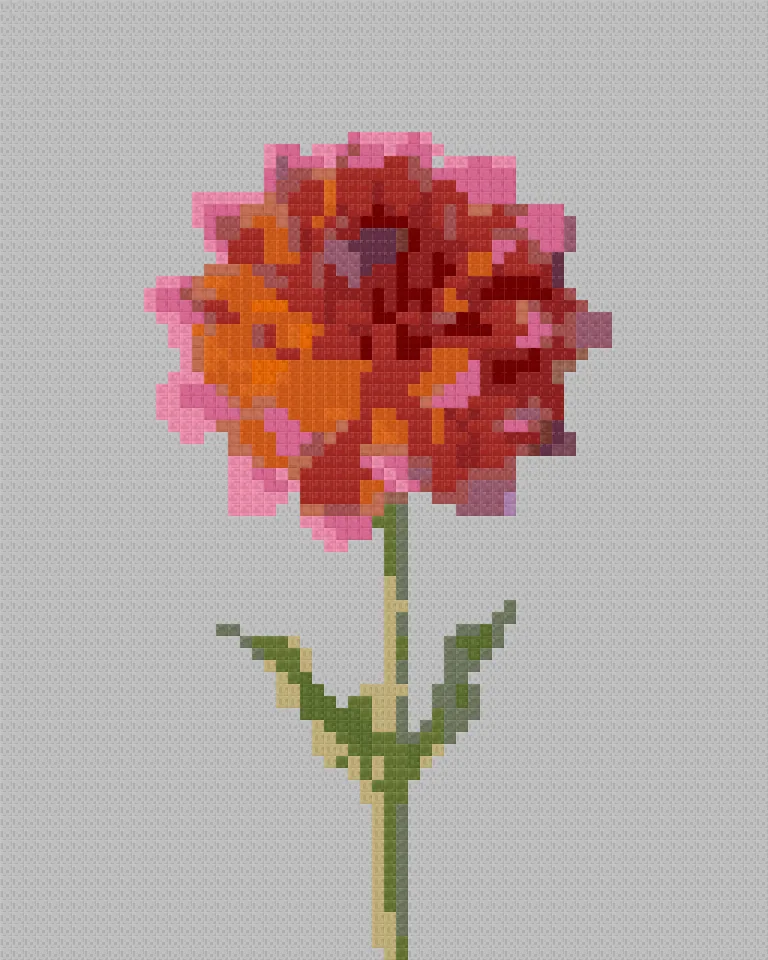
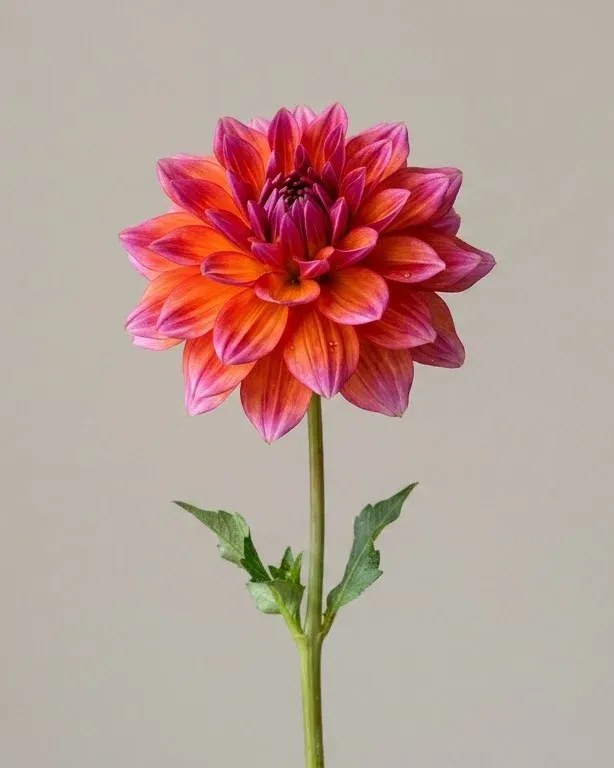
64 × 80 blocks22 kinds5,120 blocks
Dahlia, example image
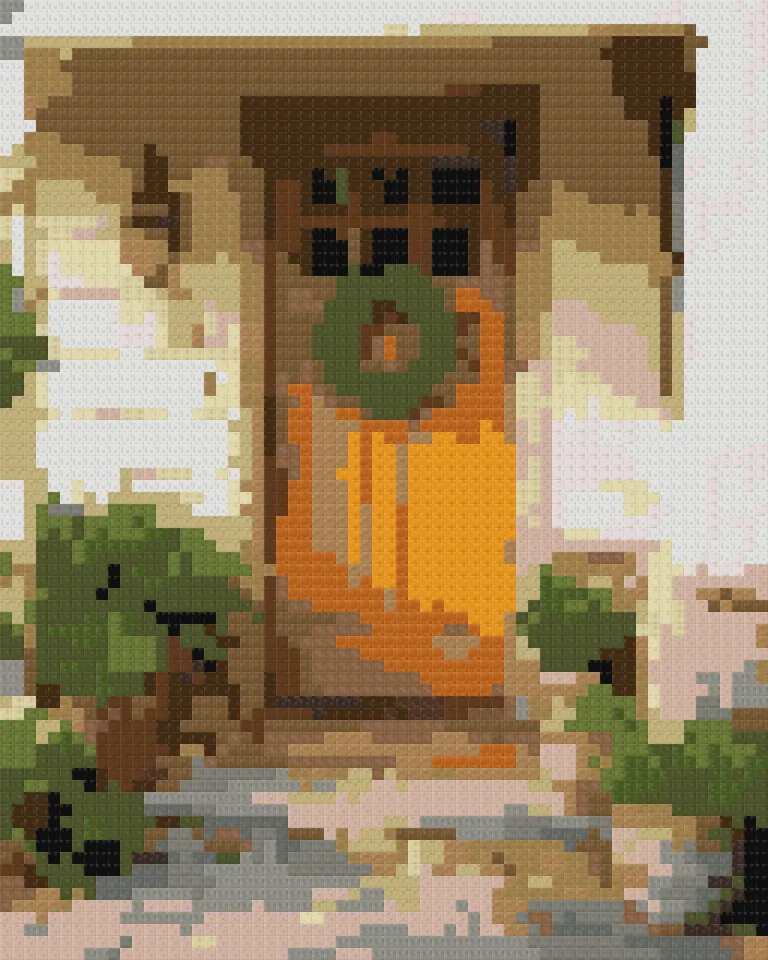
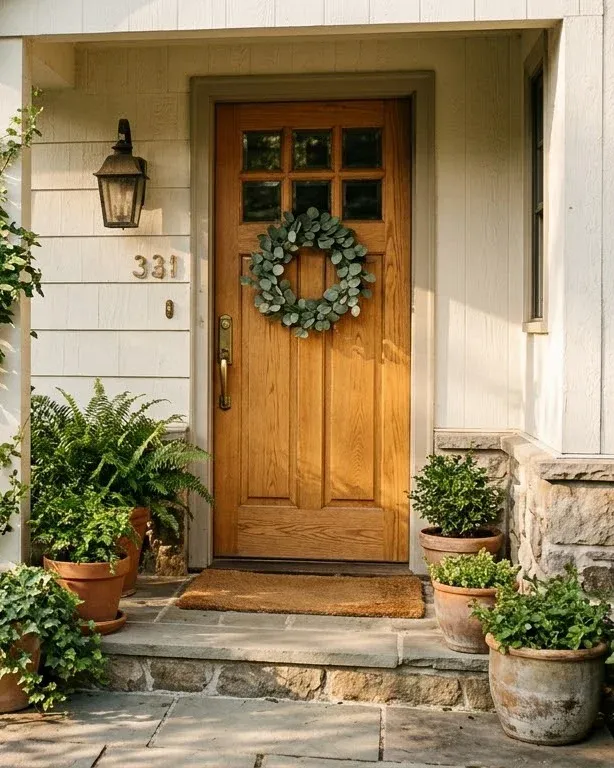
64 × 80 blocks24 kinds5,120 blocks
Front door, example image
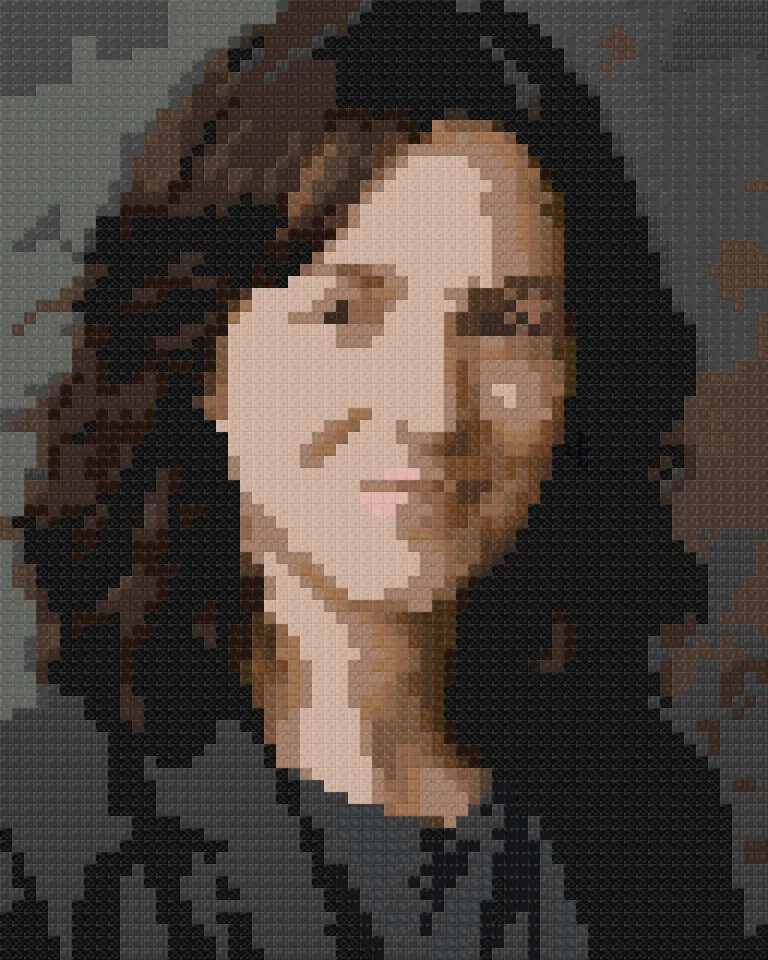

64 × 80 blocks22 kinds5,120 blocks
Portrait, example image
Settings that work
64 blocks, 24 kinds, all solid blocks
Fur needs the in-between browns and creams that only terracotta and planks give. Wool alone makes the face flatter but is easier to gather.
48 blocks, 12 kinds, background left empty
A single subject with the background left empty is the quickest build: no filler blocks, and it stands out against the sky.
96 blocks, 30 kinds
Scenes need size. At 64 blocks the door and wreath read clearly from a distance; at 32 they turn to noise.
80 blocks, 20 kinds, concrete only
Concrete's flat colour makes faces look clean, and in survival it's easy to make in bulk from sand, gravel and dye.
How to make Minecraft pixel art from an image
Drop an image on the chart. Every block is matched to the real block whose colour is closest, judged by eye, and the list counts them for you.
Set the width in blocks first; height follows from the image. Then set the kinds of block: fewer kinds means fewer trips to gather them. Use the Blocks setting to stick to wool, concrete or terracotta, and keep survival-friendly on unless you have diamond blocks to spare.
Tick Build it row by row to step through the picture one row at a time, from the bottom up, with each row listed left to right: "4 × white wool, 2 × light grey concrete".
Plan
Choose an image10 sec
Set the width and kinds of block1 min
Download the block list5 sec
Gather
Collect the blocks on the lista few sessions
Sort them into shulker boxes10 min
Build
Mark out the width on the ground2 min
Place it row by row, bottom firstyour pace
You hold a block list and a row guide2 min
Wool, concrete or terracotta
Each block set has its own look and its own cost in survival:
| Blocks | Colours | Looks | In survival |
|---|---|---|---|
| Wool | 16 | Soft, slightly textured | Shear sheep, dye it; flammable |
| Concrete | 16 | Flat, bright, clean | Powder from sand, gravel and dye, set with water |
| Terracotta | 17 | Muted, earthy | Smelt clay, then dye; plenty in badlands |
| All solid blocks | 132 (160 with every block allowed) | The most faithful | Many sources; best for faces and photos |
Mixing sets gives the best photos, because terracotta, planks and stone fill the gaps between wool and concrete's bright colours. Wool alone gives a bold, poster-like result that's easy to gather.
Blocks it leaves out
Only full, solid blocks with an even face are used, so the picture looks the same from any distance. Glass, leaves and grass are left out: leaves and grass change colour with the biome, and glass is see-through. With the default settings it also skips:
- Falling blocks: sand, red sand, gravel and concrete powder drop when there's nothing under them, which ruins a wall.
- Precious blocks: gold, diamond, emerald, iron, lapis, redstone and netherite blocks, which are costly in survival.
Wall, floor or map
Build it upright as a wall to see it from the ground, starting with the bottom row. Lay it flat as a floor to see it from above or from a tower. For map art, built flat and viewed through a map, keep in mind that maps draw each block in its own map colour, so the result can differ a little from what the generator shows.
Tips for images that build well
- Simple, bold images read best from a distance: logos, characters, pets.
- Crop tight so every block goes to the subject.
- Leave the background empty to build only the subject, against the sky or your base.
- Fix stray blocks with Edit: paint single blocks, replace every block of one kind, or merge a kind away so you have one less to gather.
PatternSquare is unofficial and not affiliated with Mojang or Microsoft. "Minecraft" is a trademark of Mojang Synergies AB. Block colours are averages of each block's texture, from the open-source blockpedia project; no game textures are used.
Questions
Is this Minecraft pixel art generator free? Yes. No sign-up and no limit. It runs in your browser, and your image is never uploaded.
How many blocks will I need? The block list counts every block and shows it in stacks of 64 and shulker boxes of 27 stacks (1,728 blocks). A 64 × 64 picture is 4,096 blocks: 64 stacks, or about 2.4 shulker boxes.
Which blocks does it use? Full, solid blocks with an even face: wool, concrete, terracotta, planks, stone and more. By default it leaves out precious blocks and blocks that fall, like sand and concrete powder. You can limit it to wool or concrete only.
Does it work for Bedrock and Java? Yes. The blocks it uses exist in both editions with the same names, so the list works for either.
Can I make map art with it? You can, but colours are matched to each block's side texture, which is what you see on a wall. Maps show blocks in the game's own map colours, so map art may look slightly different in a map.
Can I get a schematic file? Not yet. For now, download the block list and build row by row with the row view, which lists each row from left to right.
Is this an official Minecraft tool? No. PatternSquare is unofficial and not affiliated with Mojang or Microsoft. Block colours are averages of each block's texture; no game textures are used.