Pixel art converter
Turn any photo into pixel art: choose the size and colours, try a retro palette, and download a crisp PNG. Free, and your photo stays on this device.
Drop the photo to chart it
Photos to pixels
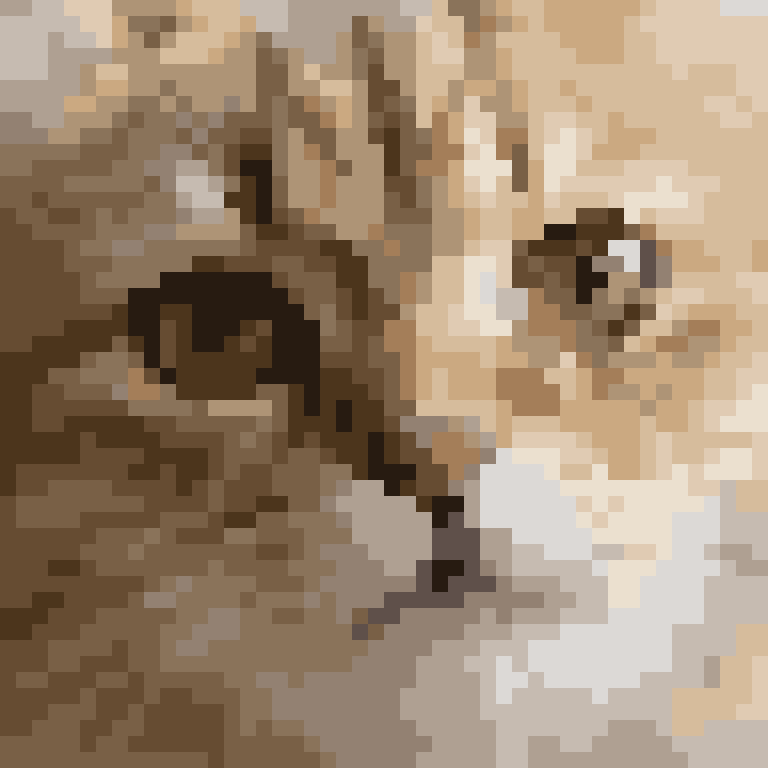
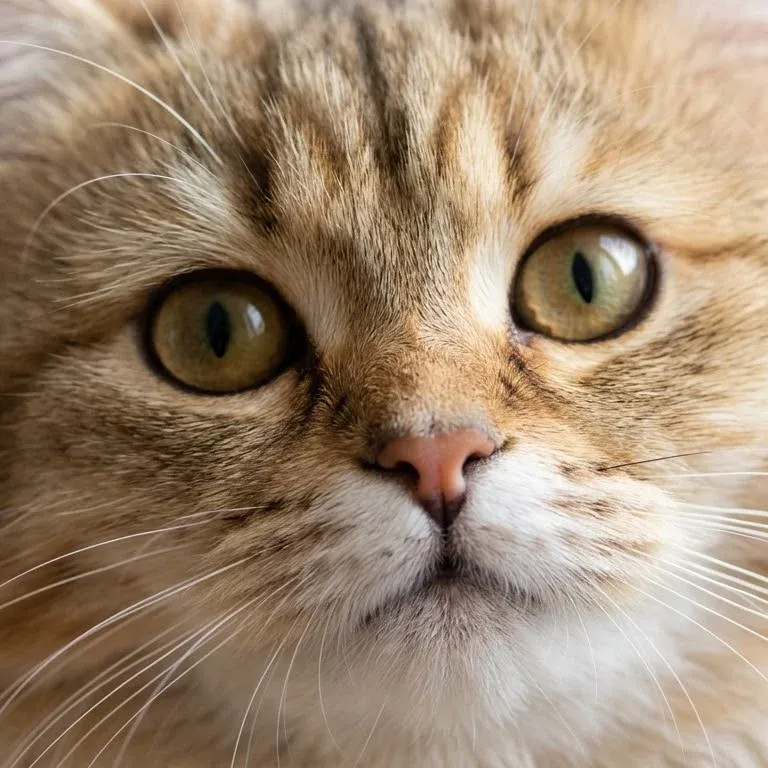
48 × 48 pixels16 coloursFree colours
Cat, example image
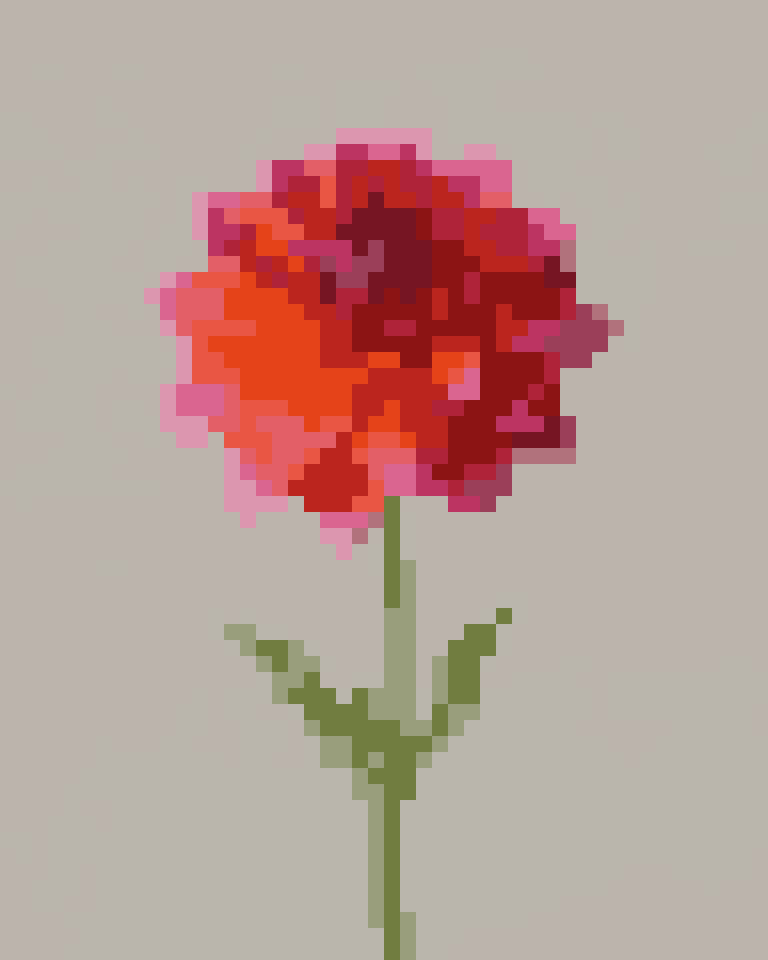
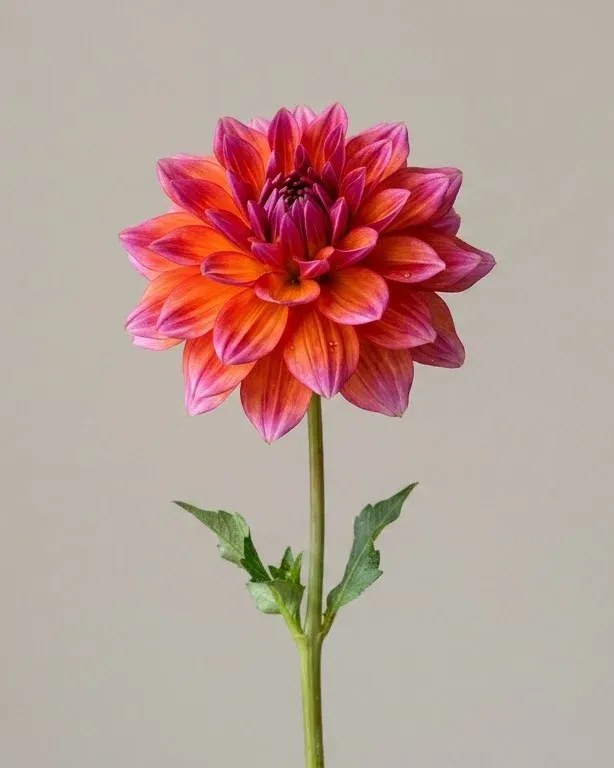
48 × 60 pixels16 coloursFree colours
Dahlia, example image
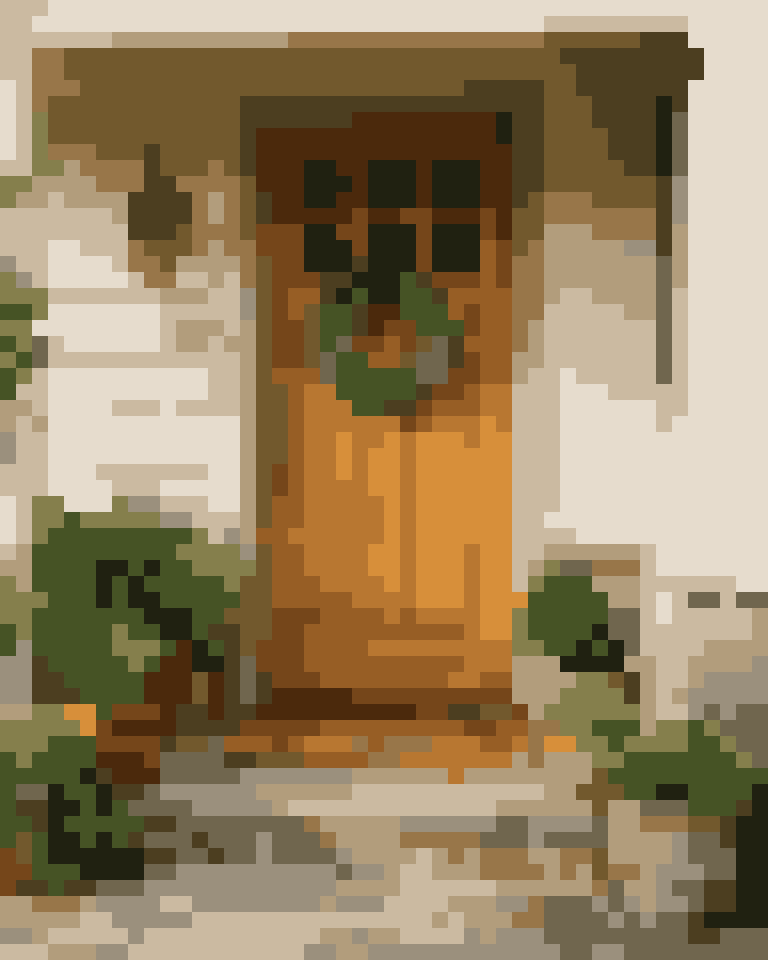
48 × 60 pixels16 coloursFree colours
Front door, example image
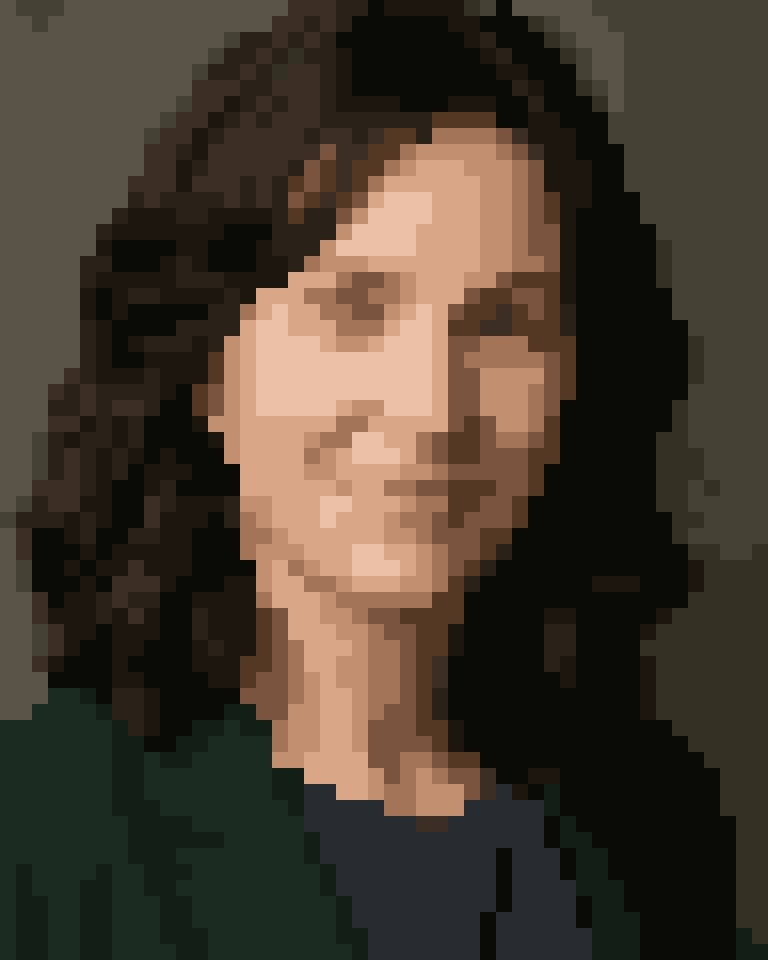

48 × 60 pixels16 coloursFree colours
Portrait, example image
Settings that work
48 pixels, 16 colours
Faces want a little more width than you'd think: at 32 pixels the eyes are only two or three pixels across. Free colours keep the warm fur tones; a retro palette makes it bolder.
40 pixels, 12 colours, background left empty
A single subject on a plain background makes classic sprite-style pixel art. Leave the background empty and the PNG comes out with a transparent background.
64 pixels, 24 colours
Scenes need more pixels to read. Try the 8-bit console palette for an old game look, and turn on blending if the gradients look stripy.
48 pixels, 4 colours, handheld green
Portraits work surprisingly well with very few colours: four shades of green turn any face into a handheld-console sprite.
How to turn a photo into pixel art
Drop a photo on the canvas. It's shrunk to your width, each pixel taking the average colour of the photo under it, and the colours reduced to as few as you choose.
The width sets how chunky it looks: 32 pixels feels like an old game sprite, 128 feels like a mosaic. The number of colours sets how flat or smooth the shading is. Choose free colours to keep the photo's own tones, or a fixed palette for a retro look.
The download enlarges every pixel into a clean square, so it stays sharp on any screen. The 1-pixel version is for game engines and pixel editors like Aseprite or Piskel.
Pick
Choose a photo10 sec
Set the width in pixels10 sec
Choose free colours or a palette10 sec
Polish
Fix stray pixels with Edit1 min
Turn on the grid if you'll copy it5 sec
Keep
Download a crisp scaled PNG5 sec
Or the 1-pixel original for editing5 sec
You hold sharp pixel art at any size1 min
Free colours or a retro palette
Free colours picks the best handful of colours for your photo, whatever they are. It gives the most faithful result.
A palette limits you to a fixed set, the way old consoles did. Your photo is matched to the closest colours in it, judged by eye rather than by numbers:
| Palette | Colours | Looks like |
|---|---|---|
| Free colours | 2–64, chosen for your photo | Your photo, simplified |
| PICO-8 | 16 fixed | Bright, cheerful fantasy-console games |
| 8-bit console | 55 fixed | Mid-1980s home console games |
| Handheld green | 4 shades of green | The original pocket handheld screen |
With a fixed palette, the "colours" slider sets the most it may use; a photo often needs fewer. Real 8-bit hardware could only show a few colours at once, so for an authentic look keep the count low.
Tips for photos that pixelate well
- Bold shapes beat fine detail. Hair strands, text and patterns vanish at small sizes; faces, animals and objects survive.
- Crop tight. Every pixel of background is a pixel the subject doesn't get.
- Raise the contrast in More settings if the result looks muddy.
- Leave the background empty for a sprite with a transparent background.
Keeping pixel art sharp
Pixel art blurs when an app enlarges it by blending neighbouring pixels. The scaled download avoids that by drawing each pixel as a solid square of exactly the size you choose. If you resize the 1-pixel image yourself, pick "nearest neighbour" (sometimes called "hard edges" or "point") scaling, and use whole-number sizes: 2×, 3×, 8×.
Dithering
With few colours, smooth gradients become visible stripes. Blend colours scatters pixels of two colours to suggest the shade between them, the technique old games used for skies and shadows. It's off by default because it makes the art busier; try it on gradients and leave it off on faces.
Questions
Is this pixel art converter free? Yes. No sign-up, no watermark and no limit on downloads.
Are my photos uploaded? No. Your photo is turned into pixel art inside your browser and never leaves your device.
What size should my pixel art be? 32 to 64 pixels across suits most photos. Smaller looks more like a classic sprite but loses detail; larger looks more like a mosaic.
How do I keep the pixels sharp when I make it bigger? Download the scaled image here, which enlarges each pixel into a crisp square. If you resize the small image in another app, choose "nearest neighbour" scaling, or it will blur.
Can I add a grid? Yes. "With grid" shows a grid on the preview, and "Grid lines in the image" draws one into the download, which helps when you copy it by hand into beads, stitches or blocks.
Can I edit single pixels? Yes. Press Edit above the image, pick a colour in the key and paint. Replace all swaps every pixel of one colour, and Undo steps back.
Can I use the pixel art in my game or shop? If the photo is yours, the pixel art is yours to use however you like. If someone else took the photo, ask them first.